 |
C-Menu 0.2.9
A User Interface Toolkit
|
|
C-Menu 0.2.9
A User Interface Toolkit
|
Version 0.2.9 2026-05-25
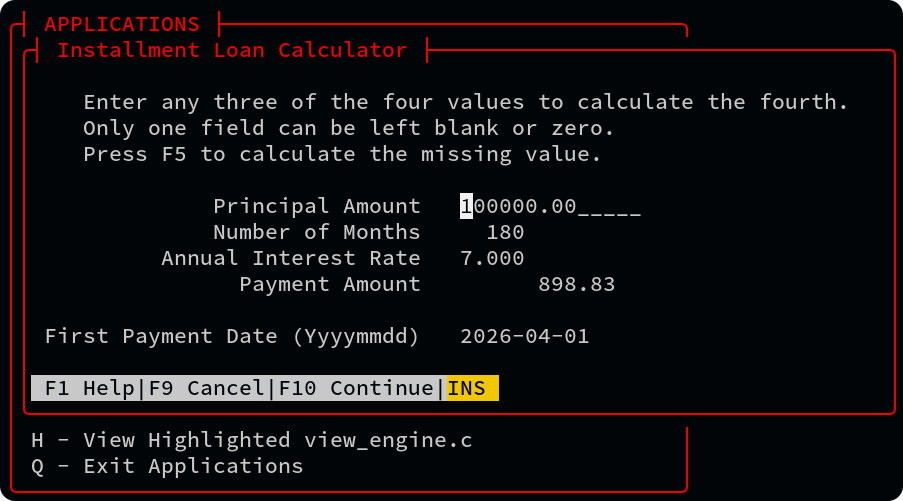
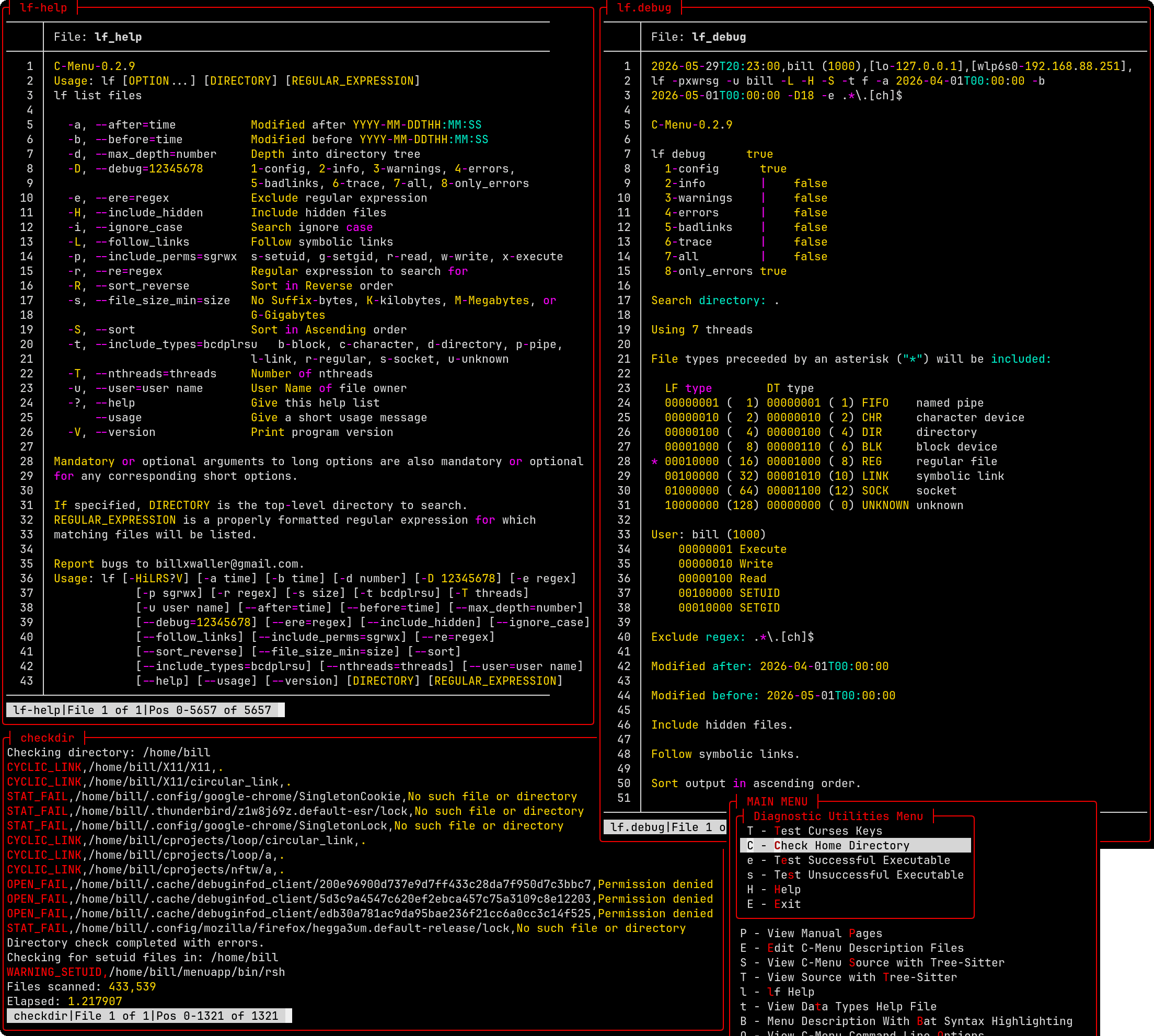

C-Menu is a fast, modular toolkit for building terminal-based user interfaces on Linux. Its components can be combined to create responsive menus, forms, pick lists, viewers, file-finding workflows, and administrative tools without the overhead of a heavyweight GUI stack.
Written in C and designed for speed, C-Menu works well for developer tools, system administration workflows, kiosk-style interfaces, and resource-constrained environments.
C-Menu is built for users who want terminal applications that are:
Instead of treating menus, forms, selection lists, and viewers as separate one-off programs, C-Menu treats them as reusable building blocks that can be assembled into complete applications.
| Component | Purpose | Typical Use |
|---|---|---|
| menu | Display menus and launch actions | Application navigation, submenus, command dispatch |
| form | Enter, edit, validate, and process structured data | Data entry, calculations, query/update workflows |
| pick | Select one or more items from a list | File selection, multi-select actions, command dispatch |
| view | Display text and command output efficiently | Logs, reports, source code, highlighted output |
| lf | Regular-expression-based file finder | File discovery, filtering, pipelines |
| rsh | Privileged shell helper | Controlled administrative workflows |
| C-Keys | Keyboard and mouse diagnostic utility | Input testing and terminal diagnostics |
See INSTALLATION for full build and install instructions.
A typical workflow with C-Menu looks like this:
Minimal example:
This example shows one of C-Menu’s core ideas: the menu itself is simple, and the power comes from composing components and external commands.
C-Menu applications are usually built from plain text description files and command lines.
This makes C-Menu especially effective when you want to combine:
menu is the top-level dispatcher. It displays choices and runs the corresponding commands.
Example:
Use menu when you want:
form is used for entering, editing, validating, and processing structured data.
A form description file contains text lines and field definitions.
Text example:
Field example:
Common workflow:
This demonstrates a powerful pattern:
Use form when you need:
pick displays a list of items and lets the user select one or more of them.
General form:
Example:
You can also avoid helper scripts when a direct command is sufficient:
Use pick when you need:
view is a fast read-only viewer for files and command output.
It supports:
Example:
view is especially useful for:
lf is C-Menu’s regular expression file finder. The name can be read as either list files or lightweight find.
Example:
This makes it easy to generate file sets for:
Example integration with pick:
For performance notes and additional details, see PERFORMANCE.
rsh provides a root-shell-oriented administrative workflow intended as an alternative approach to repeatedly invoking su or sudo for certain tasks.
Example use case:
This can be useful in tightly controlled environments where short-lived privileged sessions are part of an established workflow.
Additional documentation is available in the docs directory:
Many C-Menu options can be set either:
Command-line options override configuration-file settings.
Examples:
Configuration can be used to control display behavior and tailor the interface to your workflow.
C-Menu is designed for Linux and terminal-based operation.
Typical requirements:
Optional integrations may depend on additional external tools such as:
Refer to INSTALLATION for the exact build and runtime details.
Some C-Menu components can be used in privileged or security-sensitive workflows, especially rsh.
Before using rsh or integrating C-Menu into elevated workflows, make sure you clearly define:
Administrative tooling should be reviewed carefully before use in production or multi-user environments.
C-Menu’s design is effective because it keeps the UI layer simple and composable.
Rather than forcing a single monolithic framework, it lets you connect:
That makes it a strong fit for:
If you are exploring C-Menu for the first time, a good path is:
If you contribute examples, documentation improvements, or fixes, keeping examples small and practical will help new users learn the system quickly.
 1.17.0