
Table of Contents
Introduction
The purpose of the EXERCISES section is to provide you with practice problems similar to those you might encounter as a developer or system administrator. We are just barely getting started, so please be patient. The exercises will become more complex as we progress through the course.
As an added benefit, the exercises will provide a great test bed for debugging the C-Menu code. As always, your comments and suggestions (even complaints) are welcome.
Exercise 1: System Configurations
SDDM Background Configuration
The objective of this exercise is to Create a C-Menu Menu that allows users to safely and easily configure their system settings. We will start with a simple menu that allows users to select a new SDDM background image. This exercise assumes you have sddm installed and that the sddm theme is located in /usr/share/sddm/themes.
Requisites
- A working C-Menu installation.
- SDDM installed and configured on your system.
- A collection of background images available in the SDDM theme directory. For this exercise, we will assume the SDDM theme is located at /usr/share/sddm/themes/sddm-corporate-theme/Backgrounds, and that they are of type Portable Network Graphics (*.png). This exercise assumes that the Backgrounds directory contains a default.png image that is currently being used as the SDDM background. For the sddm-corporate-theme, the background image is specified in Themes/corporate.conf as Background=Backgrounds/default.png. You may want to install the sddm-corporate-theme as it is set up perfectly for this exercise.
sddm-corporate-theme
1️⃣ In your editor, open a new file:
vi ~/menuapp/msrc/workstation_config.m
2️⃣ Add the following content to the file and save it:
: WORKSTATION CONFIGURATION
:
: Select SDDM Background
!pick -n 1 -T "Select SDDM Background" -S sddm_bg.sh -c "sddm_chbg.sh %%"
!help
: Exit Workstation Configuration
!return
3️⃣ Open another file to create a bash script:
vi ~/menuapp/bin/sddm_chbg.sh
4️⃣ Add the following content to the file, save it, and make it executable:
#!/bin/bash
U=$(id -un)
G=$(id -gn)
bkgd_dir="/usr/share/sddm/themes/sddm-corporate-theme/Backgrounds"
rsh -c "chown -R $U:$G $bkgd_dir"
cd "$bkgd_dir"
for bg in $(lf -e '.*default\.png$' . '.*\.png$'); do
echo $(basename "$bg")
done
This script will change the ownership of the SDDM background directory to the current user, allowing them to select a new background image. It will then list the available background images which will provide input for C-Menu Pick. Don't forget to make the script executable.
chmod +x ~/menuapp/bin/sddm_chbg.sh
5️⃣ Now, create another bash script:
vi ~/menuapp/bin/sddm_chbg.sh
6️⃣ Add the following content to the file, save it, and make it executable:
#!/bin/bash
U=$(id -un)
G=$(id -gn)
bkgd_dir="/usr/share/sddm/themes/sddm-corporate-theme/Backgrounds"
rsh -c "chown -R $U:$G $bkgd_dir"
cd "$bkgd_dir"
ln -sf "$1" default.png
Pick will execute this script, passing the selected background image as an argument. The script will create a symbolic link named default.png that points to the selected background image, effectively changing the SDDM background.
7️⃣ Finally, test your menu by running it from the command line:
menu ~/menuapp/msrc/workstation_config.m
8️⃣ You may want to add the Workstation Configuration option to your main menu. To do this, open your main menu file:
9️⃣ Add the following lines to include the Workstation Configuration menu:
: Workstation Configuration
!menu workstation_config.m
From the C-Menu main menu, you should now see an option for Workstation Configuration. Selecting it will take you to the menu where you can choose a new SDDM background image.
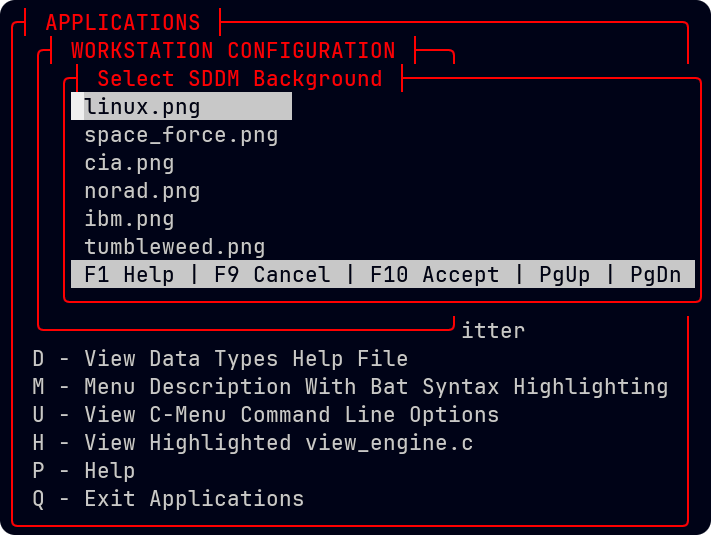
Select SDDM Background
To verify that the background has been changed, you can log out of your session and return to the SDDM login screen. You should see the new background image you selected. Or, you can check the symbolic link in the SDDM background directory to confirm it points to the correct image.
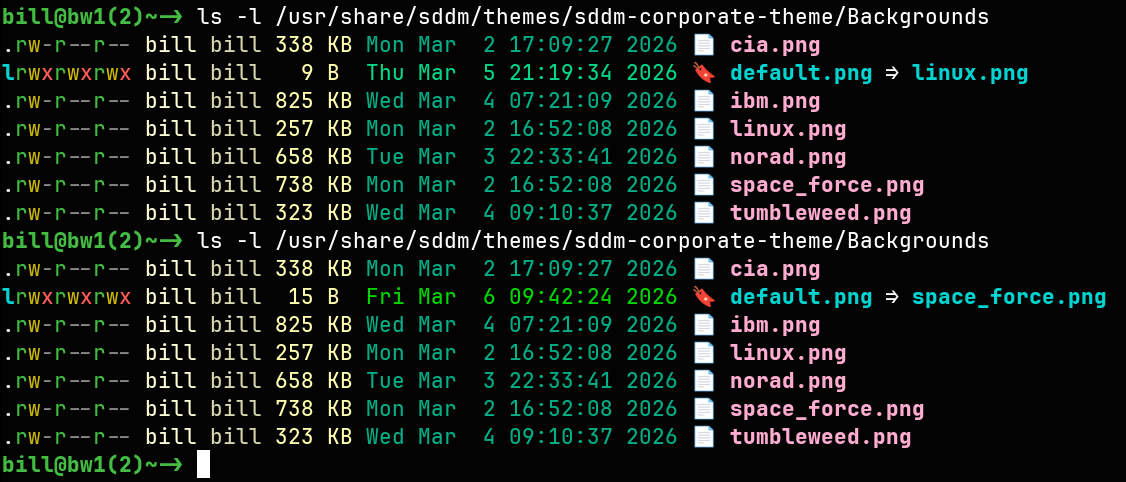
SDDM Backgrounds
The above image shows the SDDM background directory before and after selecting the space_force.png background image.
Ghostty Configuration
1️⃣ In this exercise, we will add Ghostty configurations for color themes and fonts to the Workstation Configuration. First, open the workstation_config.m file:
vi ~/menuapp/msrc/workstation_config.m
2️⃣ Add the following lines to the workstation_config.m to include options for Ghostty themes and fonts:
: Select Ghostty Theme
!pick -n 1 -T "Select Ghostty Theme" -S ghostty_themes.sh -c "ghostty_chtheme.sh %%"
: Select Ghostty Font
!pick -n 1 -T "Select Ghostty Font" -S ghostty_fonts.sh -c "ghostty_chfont.sh %%"
3️⃣ Next, create the ghostty_themes.sh and ghostty_chtheme.sh scripts:
vi ~/menuapp/bin/ghostty_themes.sh
4️⃣ Add the following content to the file, save it, and make it executable:
#!/bin/bash
U=$(id -un)
G=$(id -gn)
themes_dir="$HOME"/.config/ghostty/themes
rsh -c "chown -R $U:$G $themes_dir"
cd "$themes_dir"
for theme in $(lf -d 1 -t f -e '.*default_theme$' . '.*'); do
echo $(basename "$theme")
done
5️⃣ Now, create the ~/menuapp/bin/ghostty_chtheme.sh script, add the following content, save it, and make it executable.
#!/bin/bash
U=$(id -un)
G=$(id -gn)
themes_dir="$HOME"/.config/ghostty/themes
rsh -c "chown -R $U:$G $themes_dir"
cd "$themes_dir"
ln -sf "$1" default_theme
6️⃣ Finally, create the ghostty_fonts.sh and ghostty_chfont.sh scripts:
vi ~/menuapp/bin/ghostty_fonts.sh
#!/bin/bash
U=$(id -un)
G=$(id -gn)
fonts_dir="$HOME"/.config/ghostty/fonts
rsh -c "chown -R $U:$G $fonts_dir"
cd "$fonts_dir"
for font in $(lf -d 1 -t f -e '.*default_font$' . '.*'); do
echo $(basename "$font")
done
vi ~/menuapp/bin/ghostty_chfont.sh
#!/bin/bash
U=$(id -un)
G=$(id -gn)
fonts_dir="$HOME"/.config/ghostty/fonts
rsh -c "chown -R $U:$G $fonts_dir"
cd "$fonts_dir"
ln -sf "$1" default_font
7️⃣ Test your menu again by running it from the command line:
menu ~/menuapp/msrc/workstation_config.m
Or, if you have installed the ~/.bashrc configurations described in Augmenting C-Menu, you can just type mm to start C-Menu and navigate to the Workstation Configuration menu.
Alacritty and Kitty
The process for adding Alacritty and Kitty configurations is similar to the Ghostty configuration. You will need to create scripts to list available themes and fonts for Alacritty and Kitty, as well as scripts to change the default theme and font by creating symbolic links.
You may want to automate the creation of these scripts by using sed to replace "ghostty" with "alacritty" and "kitty" in the existing Ghostty scripts. Here's an example of how you can do this:
#!/bin/bash
sed 's/ghostty/kitty/g' ghostty_fonts.sh >kitty_fonts.sh
sed 's/ghostty/kitty/g' ghostty_chfont.sh >kitty_chfont.sh
sed 's/ghostty/kitty/g' ghostty_themes.sh >kitty_themes.sh
sed 's/ghostty/kitty/g' ghostty_chtheme.sh >kitty_chtheme.sh
chmod a+x kitty_*.sh
cp kitty_*.sh ~/menuapp/bin/
sed 's/ghostty/alacritty/g' ghostty_fonts.sh >alacritty_fonts.sh
sed 's/ghostty/alacritty/g' ghostty_chfont.sh >alacritty_chfont.sh
sed 's/ghostty/alacritty/g' ghostty_themes.sh >alacritty_themes.sh
sed 's/ghostty/alacritty/g' ghostty_chtheme.sh >alacritty_chtheme.sh
chmod a+x alacritty_*.sh
cp alacritty_*.sh ~/menuapp/bin/
Here is the final content of the workstation_config.m file after adding the Alacritty and Kitty configuration options:
: WORKSTATION CONFIGURATION
:
: Select SDDM Background
!pick -n 1 -T "Select SDDM Background" -S sddm_bg.sh -c "sddm_chbg.sh %%"
: Select Ghostty Font
!pick -n 1 -T "Select Ghostty Font" -S ghostty_fonts.sh -c "ghostty_chfont.sh %%"
: Select Ghostty Theme
!pick -n 1 -T "Select Ghostty Theme" -S ghostty_themes.sh -c "ghostty_chtheme.sh %%"
: Select Kitty Font
!pick -n 1 -T "Select Kitty Font" -S kitty_font.sh -c "kitty_chfont.sh %%"
: Select Kitty Theme
!pick -n 1 -T "Select Kitty Theme" -S kitty_themes.sh -c "kitty_chtheme.sh %%"
: Select Alacritty Font
!pick -n 1 -T "Select Alacritty Font" -S alacritty_fonts.sh -c "alacritty_chfont.sh %%"
: Select Alacritty Theme
!pick -n 1 -T "Select Alacritty Theme" -S alacritty_themes.sh -c "alacritty_chtheme.sh %%"
: Help
!help
: Exit Workstation Configuration
!return
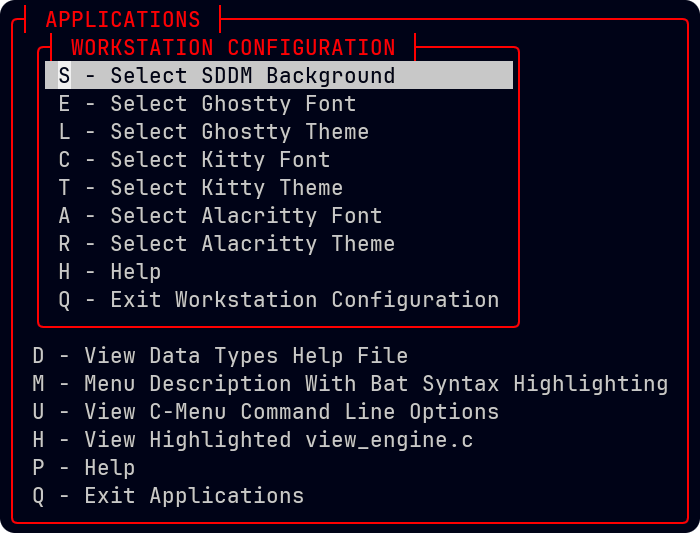
Workstation Configuration
🐸 Enjoy using C-Menu! If you encounter any issues or have questions, feel free to open an issue on the C-Menu GitHub repository.

 1.17.0