 |
C-Menu 0.2.9
A User Interface Toolkit
|
|
C-Menu 0.2.9
A User Interface Toolkit
|
C-Menu supports themes, which allow you to customize the appearance of the menu. You can create your own themes or use one of the built-in themes.
To select a theme, go to the C-Menu Workstation Configuration Menu and select the Select C-Menu Theme option. This will display a list of available themes. Select the theme you want. Either click it, or move the selector over it with the arrow keys and press the spacebar.
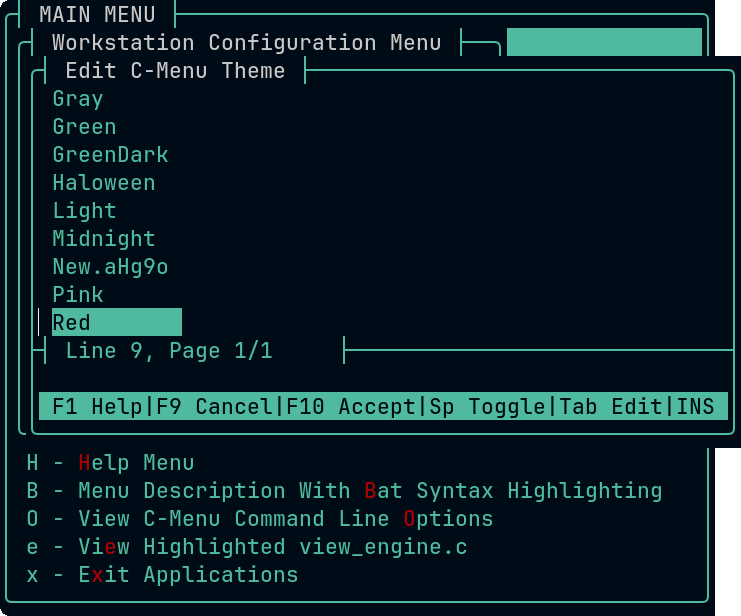
That's it. C-Menu will instantly render open C-Menu windows with the theme you selected.
To create a new theme, select "Create C-Menu Theme" from the C-Menu Workstation Configuration Menu. C-Menu Pick will open a screen similar to the one used for selecting themes, but the title will be "Choose Theme Template". Select a theme template to use as a starting point for you new theme.
When you select a theme template, C-Menu Pick will make a copy of the file you selected as a template and open it in your default text editor. Below, you can see how the file looks when opened in Neovim with the Norcalli Colorizer plugin enabled. The Colorizer plugin will display the colors and update them as you edit the file, making it easier to see the changes you are making to the theme.
The C-Menu theme files are extensions of the C-Menu configuration file. Any key value pair recognized by the C-Menu configuration file parser may be placed in either the C-Menu main configuration, (generally ~/menuapp/.minitrc) or a theme file. See C-Menu Configuration Files below for more information on the C-Menu configuration file format and parsing rules.
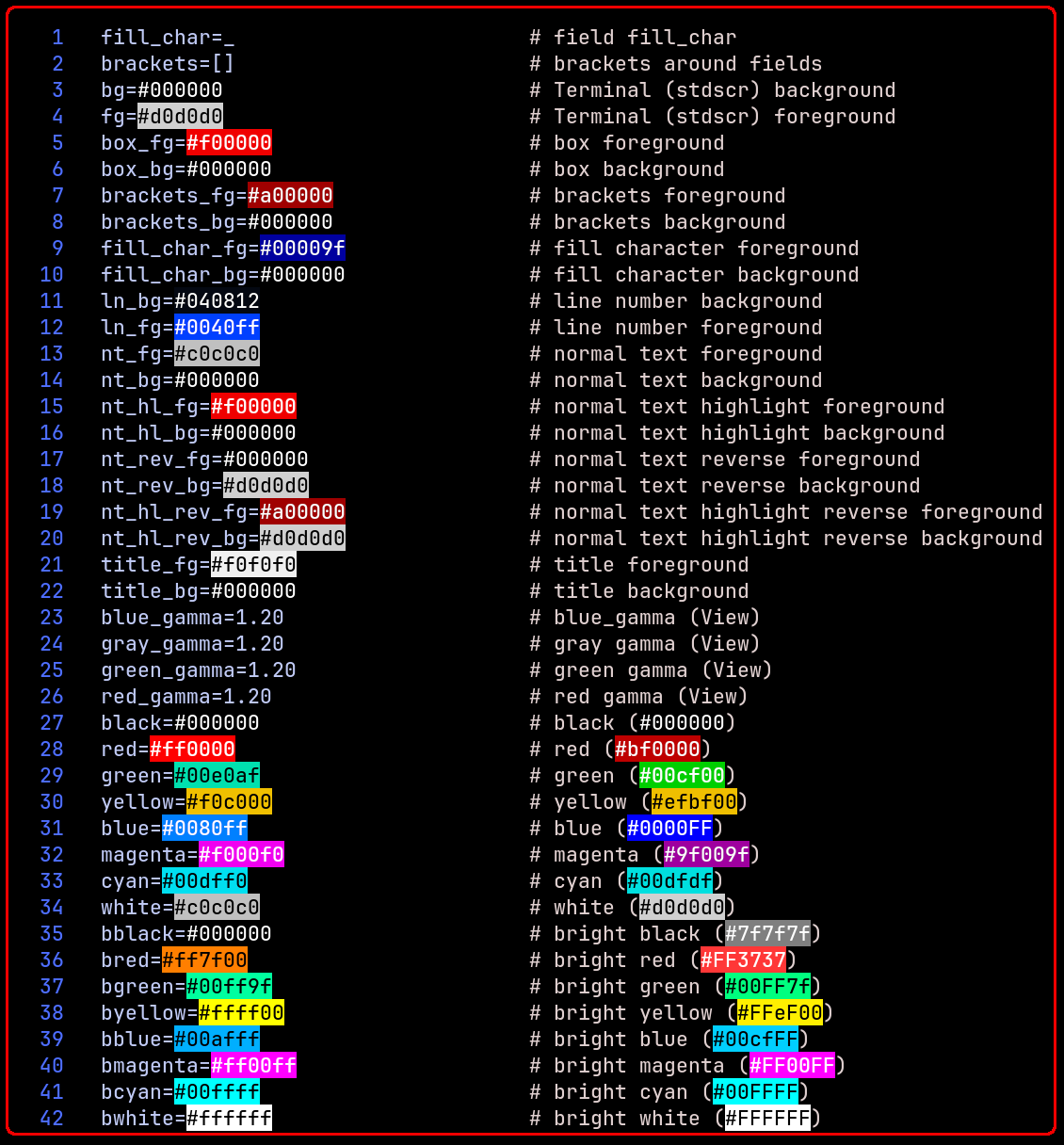
C-Menu configuration files are text files that contain key value pairs that configure the appearance and behavior of C-Menu. The main C-Menu configuration file is normally located at ~/menuapp/.minitrc, but you can include additional configuration files with include statements such as the following:
The same information that can be included in the main configuration file can also be included in theme files and vice versa. The difference is that theme files are kept in ~/menuapp/themes as a convenience. The main C-Menu Configuration file normally includes all of the entries needed for a complete theme, so it is not necessary to include theme files in the main configuration file. The Theme file is just a supplementary configuration file, the key values of which override those in the main configuration file positioned before the include statement. C-Menu uses only the last occurrence of a key and its value.
Theme files are just supplemental configuration files that configure the appearance of C-Menu. Theme files are kept separately to facilitate coherent organization of theme components, to make it easier to create and manage themes, and most importantly, to allow the user to activate themes without reloading the main C-Menu Configuration. That's because a user may have started C-Menu with specific command line options that override the main configuration file, and reloading the main configuration file would override those command line options. By keeping themes in separate files, users can activate themes without reloading the main configuration file and overriding any command line options they may have used when starting C-Menu.
Theme files are included in the main C-Menu configuration file with include statements such as the following:
The placement of the include statement in the main configuration file is significant because C-Menu processes key value pairs in reading order, so the key value pairs in the included file will override any duplicate key values in the main configuration file that are positioned before the include statement. Conversely, if you want to use a supplemental configuration as the default, include it first.
Key value pairs consist of a key, text from the beginning of a line delimited by an '=' character, and a value after the '=' character delimited by whitespace or including syntactically valid hex color codes. Values may be enclosed in single or double quotes to preserve leading and trailing whitespace, which will otherwise be stripped.
Colors are standard six-digit html-style hex color codes in the format #RRGGBB, where RR, GG, and BB are two-digit hexadecimal numbers representing the red, green, and blue components of the color, respectively. For example, #FF0000 represents pure red, #00FF00 represents pure green, and #0000FF represents pure blue.
The hex color codes must begin with a '#" character, followed by exactly six hexadecimal digits. @subsubsection comments Comments A '#' character that is not part of a value is treated as a comment character, and the rest of the line is ignored. This allows you to add comments documenting your entries in the theme file. @subsection saving-the-theme-file Saving the Theme File When you are finished editing the theme file, save it and close the text editor. You may use the name assigned, which will be in the form, "New.XXXXX", where "XXXXX" is a random string of characters, or you can rename the file to something more descriptive. There is no restriction on the names of theme files except that "default" is reserved for the default theme. The new theme will be available for selection in the "Select C-Menu Theme" menu. @subsection setting-the-new-theme-as-the-default Setting the New Theme as the Default If you use the C-Menu Workstation Configuration Menu to select the new theme, C-Menu will automatically create a symbolic link named "default" that points to the theme file you selected, so you don't need to do anything else. However, if you want to set the new theme as the default without using the C-Menu Workstation Configuration Menu, you can create a symbolic link named "default" that points to your new theme file with the following command:
Parsing: Lines beginning with # are comments and are ignored. Lines containing key=value pairs are parsed and the key and value are extracted. Lines without an '=' are ignored. Values are stripped of leading and trailing whitespace and quotes. Values can be enclosed in single or double quotes to preserve leading and trailing whitespace. Values can also be specified as hex color codes such as #ff0000 for red. If a value is specified as a hex color code, it is parsed and stored as a hex color code in the configuration. An unquoted '#' that is not part of a six digit hex color code and after key values have been extracted is the beginning of a comment.
C-Menu themes allow you to customize the appearance of C-Menu to your liking. You can create your own themes or use one of the built-in themes. By using themes, you can easily switch between different appearances for C-Menu without having to edit the main configuration file or restart C-Menu. Themes are a powerful way to personalize your C-Menu experience and make it more enjoyable to use. Whether you prefer a dark theme, a light theme, or something in between, C-Menu has you covered with its flexible theming system.
With this knowledge, go forth and create your own custom themes to make C-Menu look exactly how you want it to!
 1.17.0