 |
C-Menu 0.2.9
A User Interface Toolkit
|
|
C-Menu 0.2.9
A User Interface Toolkit
|
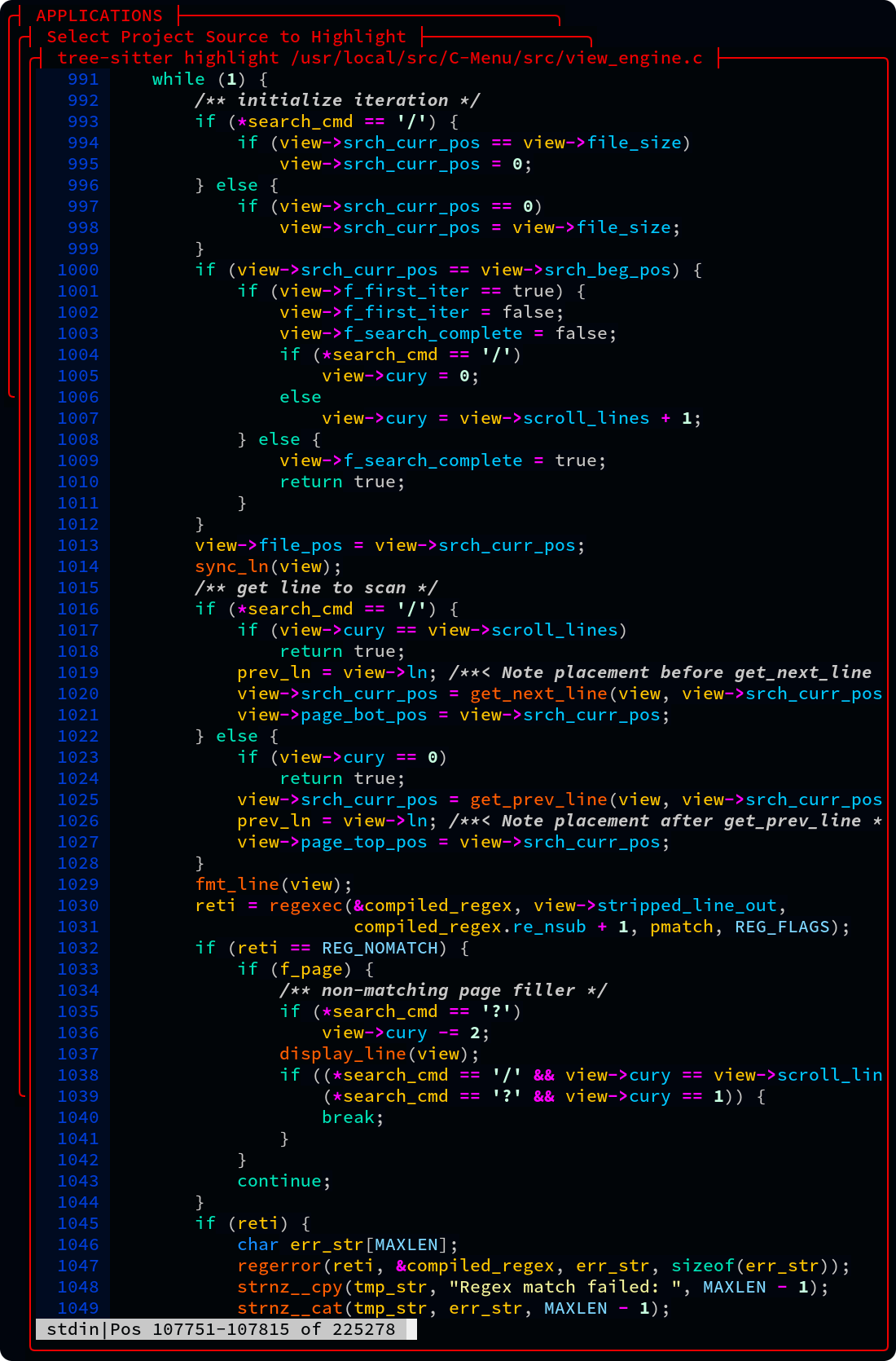
View has Unicode support, line numbering, regular expression searching, and a large virtual pad for horizontal scrolling. View works great with tree-sitter, source-highlight, pygments, bat, manual pages, and other syntax highlighters. View doesn't alter the file you are viewing. It uses the highlighter in a pipe, and reads the output, so the original file is never changed. And, if you happen to have a file that has been highlighted by another application, view can strip the ANSI codes for convenient editing. View is lightning fast, especially with huge log files.
Throughout C-Menu, and especially View, you will find many optimizations that contribute to it's efficiency and speed. Traditionally, large file I-O has relied on user-space buffering schemes in which chunks of data are copied from mass storage into local buffers using seek and read operations. The application must keep track of buffer contents, manage buffer lifecycles, and handle edge cases such as partial reads, end-of-file conditions, and error handling. This approach can be complex, error-prone, and inefficient, especially when dealing with large files or high-throughput applications. C-Menu's view takes a different approach to large file I-O by leveraging the operating system's virtual memory management capabilities to provide direct access to file data through memory mapping. Instead of relying on user-space buffering, C-Menu's view provides a direct-to-kernel, demand paged, memory mapped virtual address space for file access. This eliminates the overhead and complexity associated with user-space buffering, and allows for more efficient and reliable access to large files. With C-Menu's view, applications can access any part of a multi-gigabyte file instantly without the need for copying data into user-space buffers or managing buffer lifecycles. This results in unmatched reliability and performance when working with large files, making C-Menu's view ideal for applications that require high-throughput file access or need to work with large datasets.
If you work with large datasets, you will love view. No fluff, no bloat, no nonsense, just blazing fast performance.
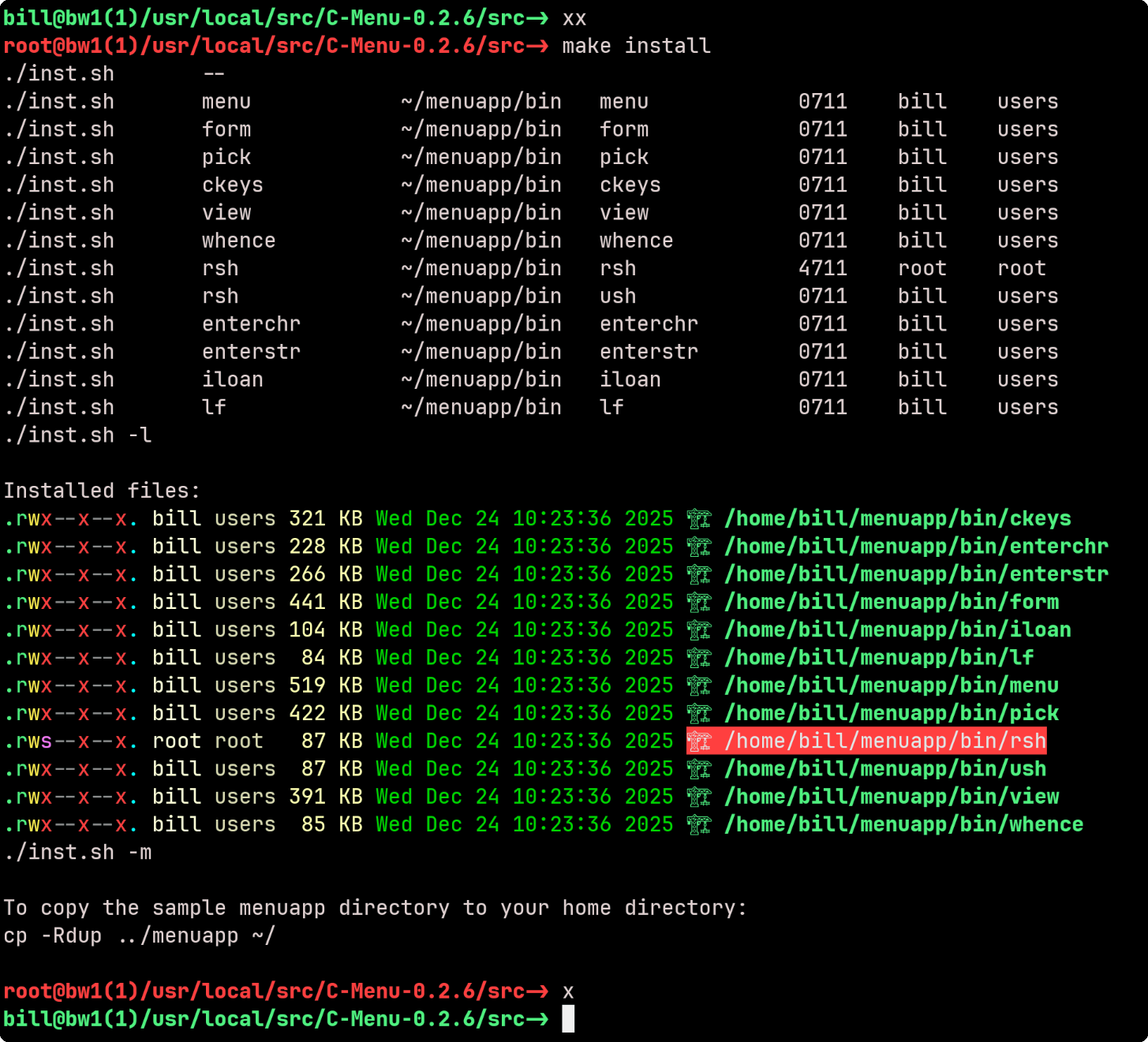
RSH - RSH provides an alternative to su and sudo for executing commands with elevated privileges. It allows developers and system administrators to get in and out of root shells and execute commands with root privileges without the need for a password, for example, by authenticating with an ssh key as you would on gethub.
In the following example, make install requires root privilege, so the user types xx, is authenticated with an ssh key, and then types make install. When the make install is finished, the user types x to exit the root shell and relinquish root privilege.
lf - is a sleek, easy-to-use, and fast file finder. The name, lf, can be thought of in the imperative sense as "list files", or in the noun sense, "lightweight find."
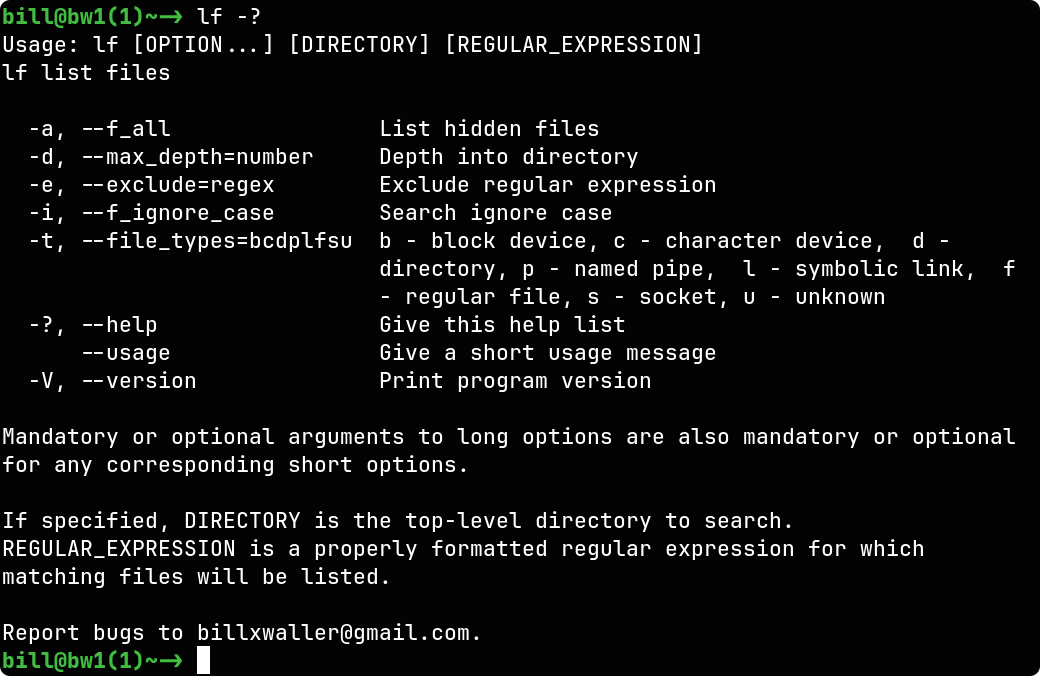
The ../screenshot above is the help output of lf piped through bat and displayed in View.
Note: lf's default behavior of including hidden files has been changed and the default is now to exclude hidden files. Before this update, the "-n" option directed lf to exclude hidden files, but that is no longer necessary and a new "-H" option has been added to direct lf to include hidden files. This change was made to align with the behavior of other popular file finders such as fd and find.
Find's built-in -exec is one of its most often used options and conspicuously, lf doesn't have a built-in -exec option. However, lf achieves identical results in a fraction of the time by piping the output of lf into xargs. There would be no benefit to adding an -exec option to lf because xargs leaves nothing to be desired.
time find . -maxdepth 5 -type f -exec ls -l {} \; >find.out
time lf -d 4 -t f | xargs ls -l >lf.out
| Command | real | user | sys | files found |
|---|---|---|---|---|
| find | 0m0.469s | 0m0.160s | 0m0.288s | 142 |
| lf | 0m0.008s | 0m0.004s | 0m0.006s | 142 |
time find . -maxdepth 4 -type f -exec ls -l {} \; >find.out
time lf -d 4 -t f | xargs ls -l >lf.out
| Command | real | user | sys | files found |
|---|---|---|---|---|
| find | 0m2.123s | 0m0.788s | 0m0.281s | 598 |
| lf | 0m0.014s | 0m0.007s | 0m0.009s | 598 |
The results were unequivocal. lf with xargs is significantly faster than find with its built-in exec option.
The command lines below are simple and straightforward, with no complex options or filters. Benchmark comparisons are notoriously subject to manipulation, so take them with a grain of salt. There are so many variations in hardware, file systems, the actual data, and system caching states that can skew results. You wouldn't buy a new Corvette without a test drive, so take C-Menu for a spin, do your own comparisons, and decide for yourself. (Why does it feel so sneaky to say that? (-: (-: )
time find . -type f | wc
time lf . -t f | wc
time fd . -H -t f | wc
| Command | real | user | sys | files found |
|---|---|---|---|---|
| find | 0m0.793s | 0m0.470s | 0m0.453s | 307440 |
| lf | 0m0.214s | 0m0.036s | 0m0.214s | 307440 |
| fd | 0m0.221s | 0m0.319s | 0m0.821s | 291969 |
Even without its speed advantage, lf would still be a compelling alternative due to its simplicity, portability, and ease of use. With fewer options and a more intuitive syntax, lf is a breeze to learn and use for the most common file searching tasks.
Here's an example of how easy it is to use lf to find files modified between two dates. The command line below uses lf to find files modified after 2024-01-01 and before 2024-06-01, and then pipes the output to xargs to execute ls -l on the found files.
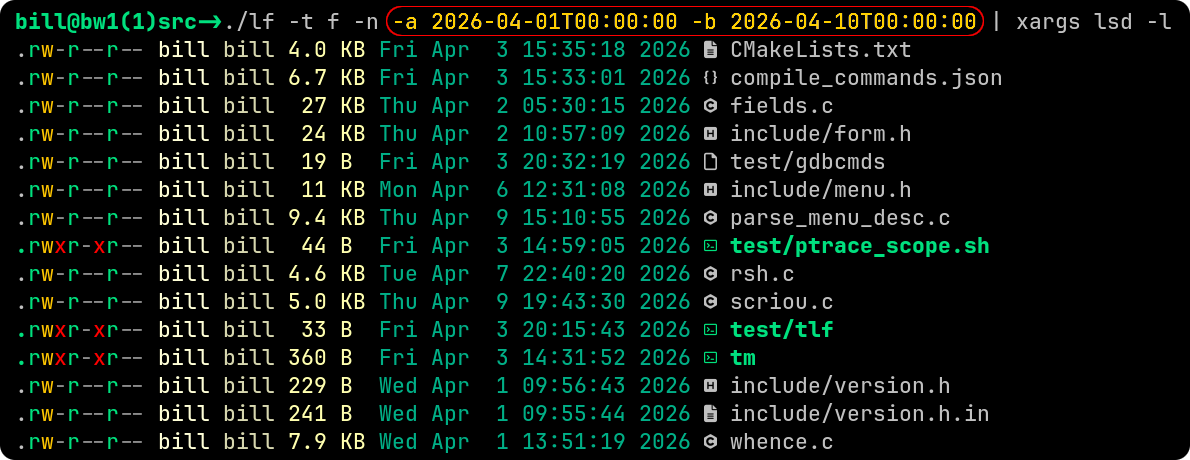
The ../screenshot above shows how you might use the date-time options of lf to list files between two date-times (after and before) and the sample output. We believe you will find this format intuitive and easy to use.
 1.17.0