
Installation Guide
C-Menu INSTALLATION
The instructions below will guide you through the process of installing C-Menu on your Linux system.
Environment Configuration
- Configure your environment to use the C-Menu binaries and libraries:
Prepend the C-Menu bin directory to your PATH environment variable by adding the following line to your shell profile (e.g., ~/.bashrc or ~/.zshrc). Assuming you extracted the menuapp directory to your home directory, the line would look like this:
export PATH="$HOME"/menuapp/bin:"$PATH"
Download and Install C-Menu Source
Currently, building from source is the recommended way to install C-Menu, as it ensures that you have the latest features and bug fixes.
gh repo clone BillWaller/C-Menu
- Copy the menuapp directory to your desired location:
cp -r C-Menu/src/menuapp /home/yourusername/
Prerequisites
- One of:
- CMake 3.20 or higher, or
- GNU Make 4.3 or higher
- A C compiler that supports C23 or later (e.g., GCC 13 or later, Clang 15 or later)
- GNU GLIBC development files
- GNU Math Library (libm) development files
One or both:
- NCursesw development libraries 6.5 or later
- Notcurses development libraries v3.0.17 or later
To Build the C-Menu Binaries and Libraries
Change to the source directory, C-Menu/src, and type:
The script should respond with a message similar to the following:
menu linked with ncurses
CMake - NCURSES
Makefile - NCURSES
If these are the options you want, proceed with the build: To switch from NCURSES to NOTCURSES or vice versa, run the chkui script again with the "-s" option.
The script should respond with a message similar to the following:
menu linked with ncurses
CMake - NCURSES
Makefile - NCURSES
CMake switching to NOTCURSES
Makefile switching to NOTCURSES
To build with CMake, remain in the source directory, C-Menu/src, and type:
This will create a build directory if it doesn't already exist. After the cmake.sh script finishes, change to the build directory and type:
To build with GNU Makefile, remain in the source directory, C-Menu/src, and type:
Finish the installation
- Vrify that the C-Menu libraries and binaries have been installed to the correct directories (e.g., /home/yourusername/menuapp/lib64 and /home/yourusername/menuapp/bin) and that the permissions are set correctly.
ls -l "$HOME"/menuapp/lib64 "$HOME"/menuapp/bin
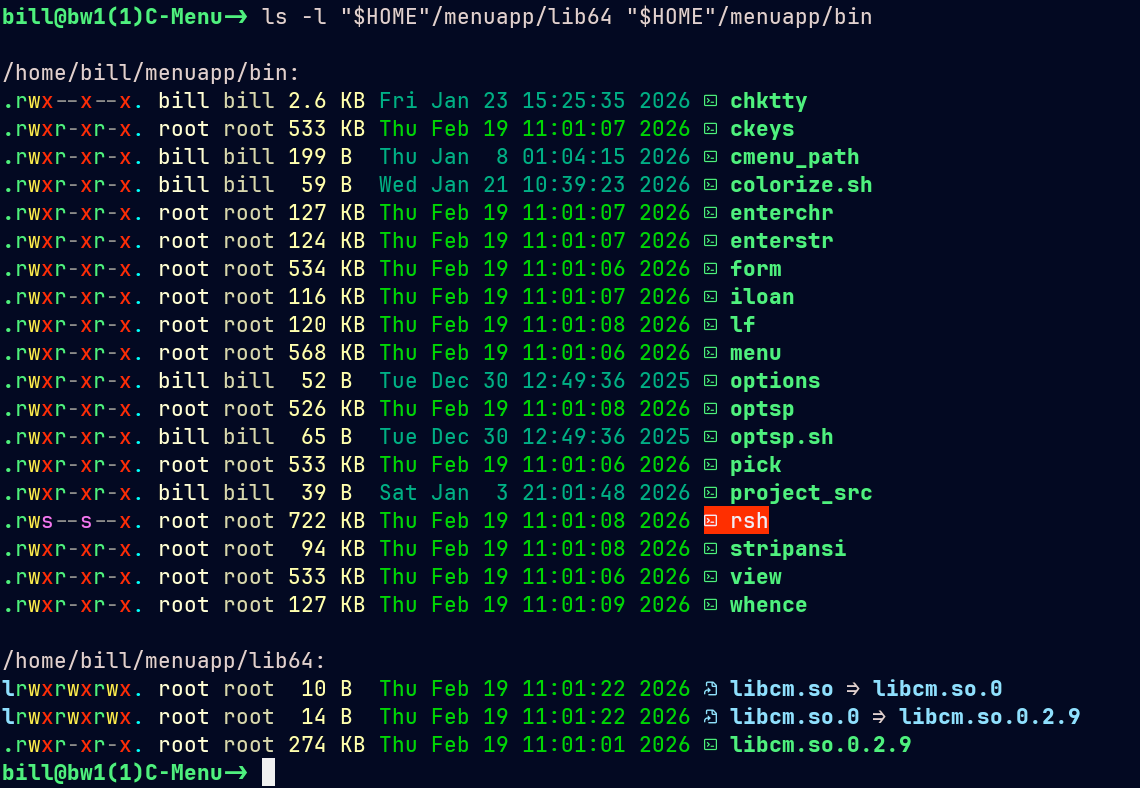
Directory Listing
- Register the C-Menu libraries with the dynamic linker by running the following command:
sudo ldconfig -v "$HOME"/menuapp/lib64
- Add the C-Menu bin directory to your PATH environment variable by adding the following line to your shell profile (e.g., ~/.bashrc or ~/.zshrc):
export PATH="/home/yourusername/menuapp/bin:"$PATH"
(replace /home/yourusername with the actual path to your menuapp directory) and save the file. 😆
- Copy the sample minitrc from the C-Menu/menuapp directory to your home directory:
cp "$HOME"/menuapp/minitrc "$HOME"/.minitrc
- Edit the ~/.minitrc file to customize your C-Menu configuration as needed.
- Source your shell profile to apply the changes to your PATH:
- Start C-Menu by running the following command in your terminal:
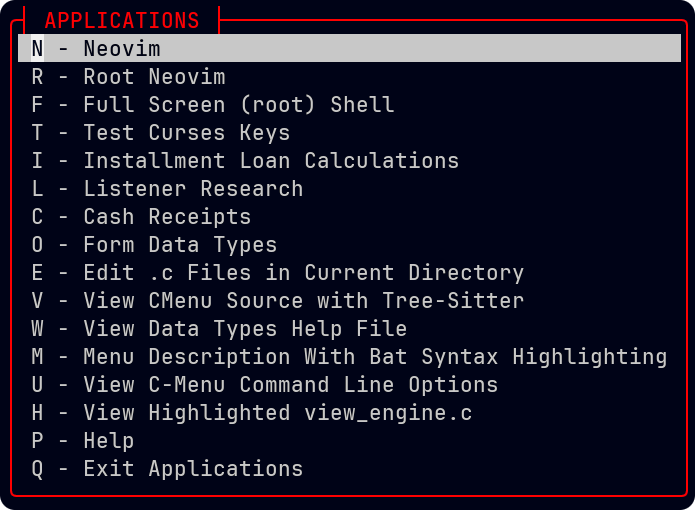
C-Menu Running

 1.17.0