 |
C-Menu 0.2.9
A User Interface Toolkit
|
|
C-Menu 0.2.9
A User Interface Toolkit
|
title: "view" section: 1 header: User Manuals footer: C-Menu View Version 0.2.9 author: Bill Waller
view - file viewer/pager
view [-Wk?V] [-a file_spec] [-C number] [-L number] [-T text] [-X number] [-Y number] [-A file_spec] [-c file_spec] [-d file_spec] [-g file_spec] [-H file_spec] [-i file_spec] [-l text] [-o file_spec] [-R file_spec] [-S file_spec] [-Z text] [-b text] [-e[bool]] [-f char] [-j[bool]] [-M[bool]] [-n number] [-N[bool]] [-r[bool]] [-s[bool]] [-t number] [-u text] [-v[bool]] [-w[bool]] [-x[bool]] [-z number] [–f_write_config] [–minitrc=file_spec] [–parent_cmd] [–cols=number] [–lines=number] [–title=text] [–begx=number] [–begy=number] [–cmd_all=file_spec] [–cmd=file_spec] [–mapp_spec=file_spec] [–log_file_spec=file_spec] [–help_spec=file_spec] [–in_spec=file_spec] [–log_level=text] [–out_spec=file_spec] [–receiver_cmd=file_spec] [–provider_cmd=file_spec] [–timeout_secs=text] [–border=text] [–editor=text] [–f_erase_remainder[=bool]] [–fill_char=char] [–f_strip_ansi[=bool]] [–f_multiple_cmd_args[=bool]] [–select_max=number] [–f_ln[=bool]] [–f_read_theme[=bool]] [–f_squeeze[=bool]] [–tab_stop=number] [–brackets=text] [–p_view_files[=bool]] [–wrap[=bool]] [–f_ignore_case[=bool]] [–h_shift=number] [–bg=hex_clr] [–box_bg=hex_clr] [–box_fg=hex_clr] [–brackets_bg=hex_clr] [–brackets_fg=hex_clr] [–cmdln_bg=hex_clr] [–cmdln_fg=hex_clr] [–fg=hex_clr] [–fill_char_bg=hex_clr] [–fill_char_fg=hex_clr] [–ind_bg=hex_clr] [–ind_fg=hex_clr] [–ln_bg=hex_clr] [–ln_fg=hex_clr] [–nt_bg=hex_clr] [–nt_fg=hex_clr] [–nt_hl_bg=hex_clr] [–nt_hl_fg=hex_clr] [–nt_hl_rev_bg=hex_clr] [–nt_hl_rev_fg=hex_clr] [–nt_rev_bg=hex_clr] [–nt_rev_fg=hex_clr] [–ran_bg=hex_clr] [–ran_fg=hex_clr] [–title_bg=hex_clr] [–title_fg=hex_clr] [–blue_gamma=float] [–gray_gamma=float] [–green_gamma=float] [–red_gamma=float] [–bblack=hex_clr] [–bblue=hex_clr] [–bcyan=hex_clr] [–bgreen=hex_clr] [–black=hex_clr] [–blue=hex_clr] [–bmagenta=hex_clr] [–bred=hex_clr] [–bwhite=hex_clr] [–byellow=hex_clr] [–cyan=hex_clr] [–green=hex_clr] [–magenta=hex_clr] [–red=hex_clr] [–white=hex_clr] [–yellow=hex_clr] [–mapp_data=directory] [–mapp_help=directory] [–mapp_home=directory] [–mapp_msrc=directory] [–mapp_theme=file] [–mapp_user=directory] [–help] [–usage] [–version] [INPUT] [OUTPUT] [HELP] [ARG4] [ARG5]
View is the modern, high-performance file viewer/pager designed to handle large files with ease and blinding speed.
C-Menu Menu, Form, Pick, and View read configuration data from $CMENU_HOME/.minitrc Many options, colors for instance, are more suited for .minitrc than for the command line.
By default, C-Menu determines the size and position of various windows based on content and terminal size. The following options allow you to specify the location and size of Windows, but C-Menu may override if the specified geometry is too large for the terminal.
If lines and columns are specified View will start in a bordered window. Otherwise, View will use all of the space available in the console or terminal emulator.
-Y, –begy=number
The terminal line on which the top of the Window is placed.
-X, –begx=number
The terminal column on which the left side of the Window is placed.
-C, –cols=number
Window width in columns.
-L, –lines=number
Window height in lines.
-T, –title=text
Window title displayed on the top line of the window.

Title is only used when View is displayed in a bordered window.
-H, –help_spec=file_spec
Help files provide text that is displayed in the help window. In the
example C-Menu application, these files are stored in
$CMENU_HOME/menuapp/help. Any file names may be used, but it may prove
convenient to append .help to help files. Conventionally, source help
files are designated with the extension _help.
-A, –cmd_all=file_spec
This command will be provided to view's command processor for immediate
execution on startup. It may be used to set View options or execute any other and recognized by the view command processor. For example, "/pattern"
would search for pattern on startup.
-c, –cmd=file_spec
This command may be executed at arbitrary points during various events.
For example, Form may use a -c command to execute an SQL query to
provide information related to the current form. The presence of these
command hooks will be doumented with each feature for which it is used.
-S, –provider_cmd=file_spec
A provider is the inverse of a receiver, that sends output to the
calling program. The calling program receives input from the piped
output of the provider program. This is not a named pipe or a
network connection, but a direct connection between the calling
program and the provider.
-w, –wait_timeout=seconds
Determines how long to wait for IO before timing out. This feature is
useful when using receiver and provider commands, but it may also be used for
file IO. If the timeout is reached, the pick engine will display a countdown
window indicating that it is waiting for IO, and the user may choose to cancel the process or continue waiting in timeout intervals.
-s, –f_squeeze=bool
View: When writing output, replace multiple blank lines with a single blank line.
-x, –f_ignore_case=bool
View: Ignore case when searching withing view.
-N, –f_ln[=bool]
View: Display line numbers in the left margin of the view. The default setting
for f_ln s normally false, but f_ln may be set to true in the C-Menu
configuration file ($HOME/menuapp/.minitrc), which will cause View to display
line numbers by default. If you want to override the configuration file
setting, you may use -Nt to turn line numbers on or -Nf to turn line numbers
off.
-t, –tab_stop=number
View: When writing output, replace tab characters with the appropriate number
of spaces. The default setting for tab_stop is 4, but it may be set to a
different value in the C-Menu configuration file ($HOME/menuapp/.minitrc). If
you want to override the configuration file setting, you may use -t1 to set
the number of spaces per tab.
–red_gamma=1.0 red gamma (View)
–green_gamma=1.0 green gamma (View)
–blue_gamma=1.0 blue_gamma (View)
–gray_gamma=1.0 gray gamma (View)
While C-Menu's gamma settings apply to all C-Menu applications, they are especially useful in View. Often, highlighted or color text files are too bright, too dark, have too much or too little contrast, or are otherwise difficult to read. C-Menu View gives you a way to deal with that by providing four channel gamma correction. Gray is broken out separately and applies to colors for which red, green, and blue are equal. The default setting for all four channels is 1.0, which means that no gamma correction is applied. If you want to override the configuration file setting, you may use --red_gamma=0.8 to set red gamma to 0.8, for example.
–bblack=hex_clr bright black (#7f7f7f)
–bblue=hex_clr bright blue (#00cfFF)
–bcyan=hex_clr bright cyan (#00FFFF)
–bgreen=hex_clr bright green (#00FF7f)
–black=hex_clr black (#000000)
–blue=hex_clr blue (#0000FF)
–bmagenta=hex_clr bright magenta (#FF00FF)
–bred=hex_clr bright red (#FF3737)
–bwhite=hex_clr bright white (#FFFFFF)
–byellow=hex_clr bright yellow (#FFeF00)
–cyan=hex_clr cyan (#00dfdf)
–editor=text default editor
–green=hex_clr green (#00cf00)
–magenta=hex_clr magenta (#9f009f)
–red=hex_clr red (#bf0000)
–white=hex_clr white (#d0d0d0)
–yellow=hex_clr yellow (#efbf00)
It is also possible to redefine the standard colors used by the C-Menu application.

NOTE: Redefining standard colors does not change the colors used by the
terminal emulators or by various highlighters that use 24-bit RGB. The gamma
setting will affect all colors in view.
-V, –version Print program version
-?, –help Give this help list
–usage Give a short usage message
-V, –version Print program version
A space after short options is optional. For example, -s10M and -s 10M are both valid.
Option arguments may be ganged. For example, to list all files, directories, and links, you can use -t f -t d -t l or -tfdl.
Mandatory or optional arguments to long options are also mandatory or optional for any corresponding short options.
View has a rich feature set, including Unicode support, line numbering toggle, regular expression searching, a large virtual pad for horizontal scrolling, smart word wrap toggle, windowing, window resizing, and regular expression searching. It supports tree-sitter, source-highlight, pygments, bat, manual pages, and other syntax highlighters. You can safely view critical system files without the risk of accidentally modifying them, as View is a read-only viewer. If you need to edit a file, just type the letter v on the view command line, to open the file in your favorite editor. View is also highly customizable with a wide range of options and setting including color schemes and even user selectable four-channel gamma correction.
View is designed to be fast and efficient, even when working with very large files, making it an ideal tool for developers, system administrators, and anyone who needs to quickly and easily view large files. It is especially convenient when used with C-Menu's file finder, lf, and C-Menu's Pick, which in combination allow you to quickly display a list of files and automatically open each one as you move the highlighted selector bar. With the Notcurses interface selected, jpeg, png, gif, and other image types are also displayed in the view window.
While view gladly displays files highlighted with ANSI SGR sequences, your favorite editor may not, so C-Menu comes with a handy utility to strip ANSI SGR sequences.
Throughout C-Menu, and especially View, you will find many optimizations that contribute to efficiency and speed. Traditionally, large file I-O has relied on user-space buffering schemes in which chunks of data are copied from mass storage into local buffers using seek and read operations. C-Menu doesn't use this approach. It is redundant to copy massive amounts of data from kernel space into user memory, and then try to manage a one-off, home-spun, and complicated buffer pool that is at best error-prone, and inefficient, especially when dealing with large files or high-throughput applications. C-Menu's view leverages modern capabilities of the Linux kernel to provide Zero-Copy, direct virtual memory access to file data. This eliminates the overhead and complexity associated with user-space buffering, and allows for more efficient and reliable access to large files. With C-Menu's view, applications can access any part of a multi-gigabyte file instantly without the need for copying data into user-space buffers or managing buffer lifecycles. You get unmatched reliability and performance when working with large files.
If you work with large datasets, you will love view. No fluff, no bloat, no nonsense, just blazing fast performance.
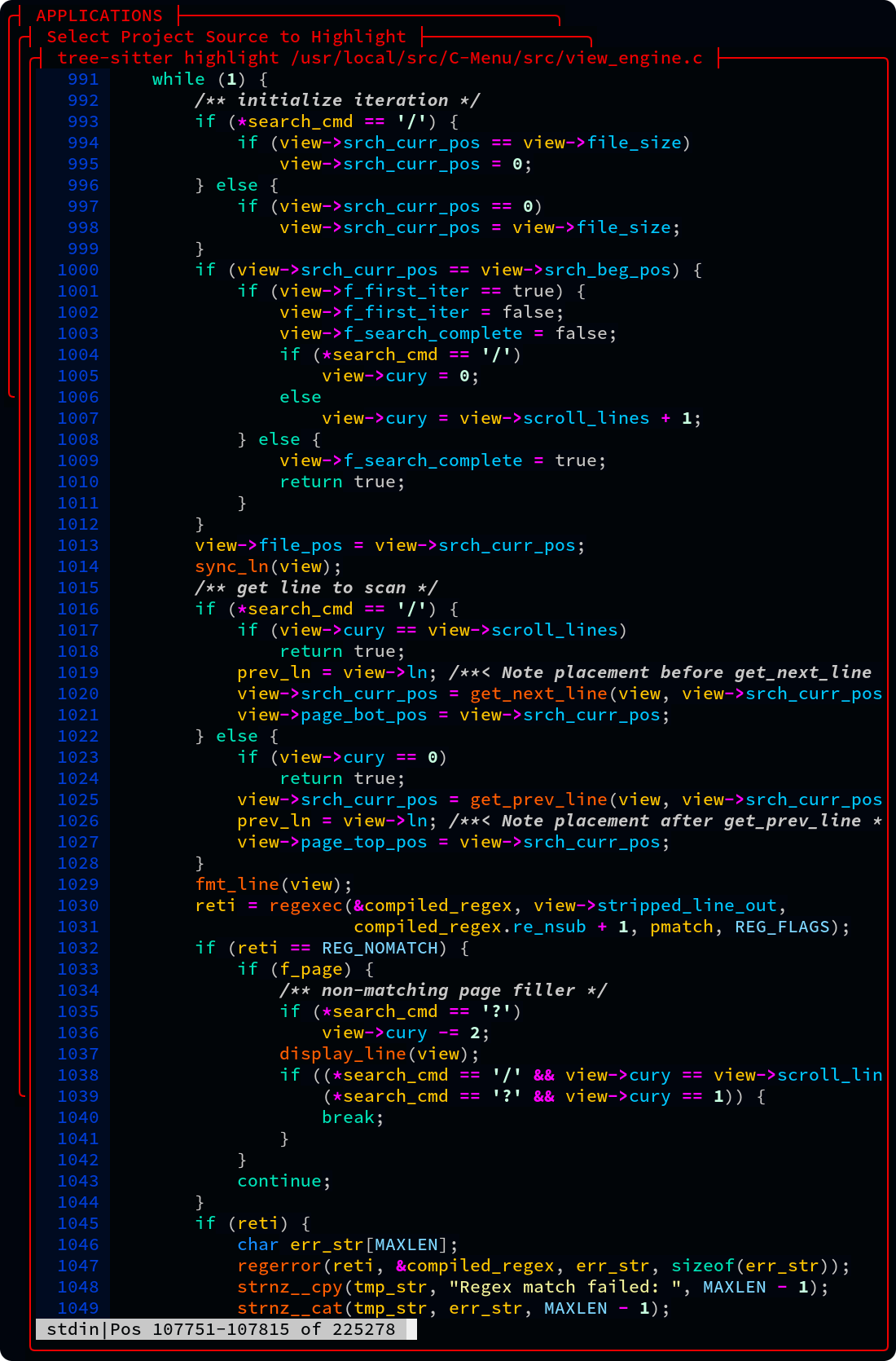
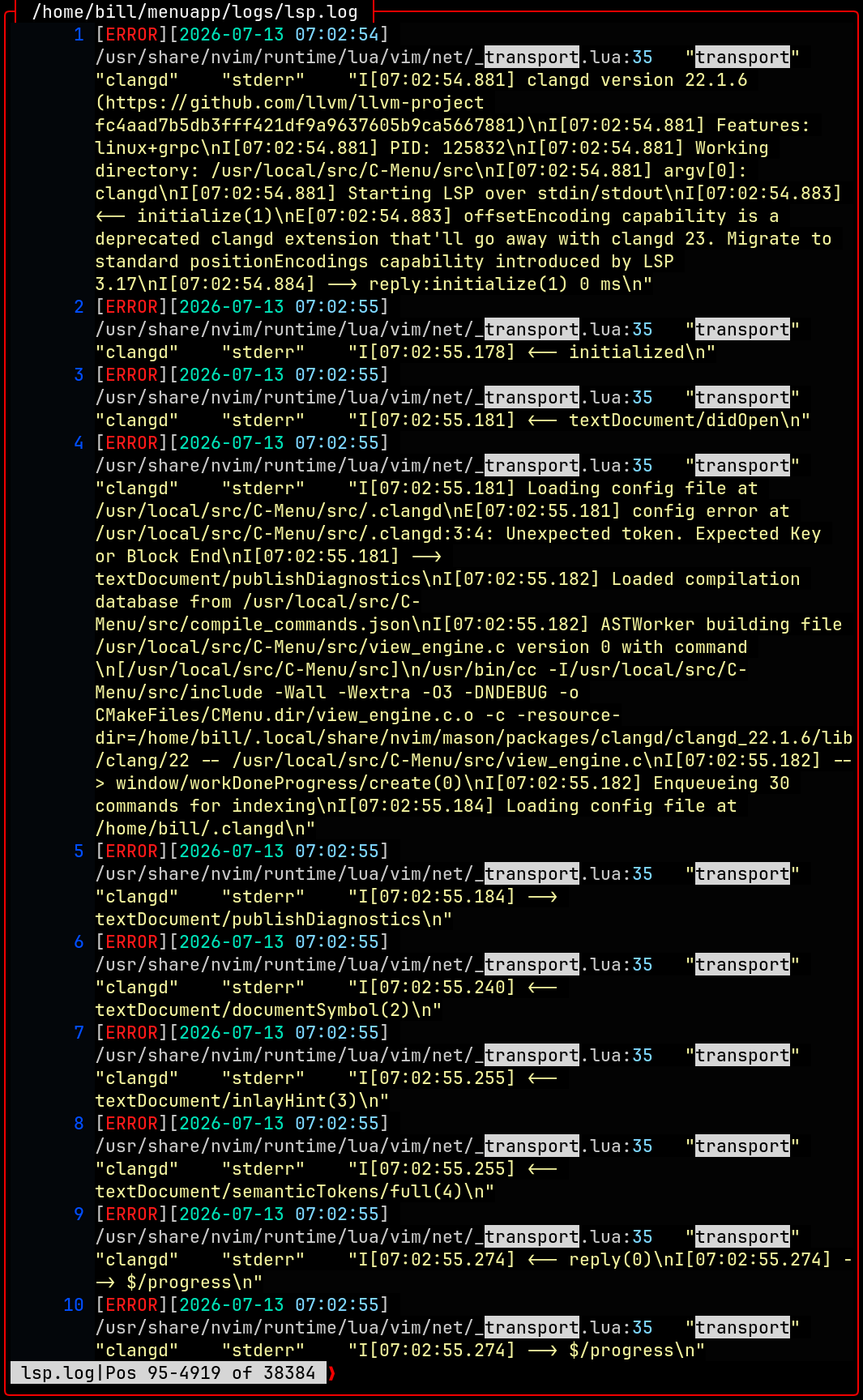
Below: LSP Log in view window with line numbers, smart word-wrap, syntax highlighting, and regular expression search for "transport". View also provides full-screen windowing and horizontal scrolling.
 1.17.0