 |
C-Menu 0.2.9
A User Interface Toolkit
|
|
C-Menu 0.2.9
A User Interface Toolkit
|
Use C-Menu Form when you need to enter, edit, validate, process, and submit data.
The C-Menu form command specifies a description file which defines the on-../screen form.
Specification:
Example:
Parameter 1 - "T" designates line type as text
Character 2 - ":" separator used to parse the remainder of the line
Parameter 2 - "5" form window line
Parameter 3 - "14" form window column
Parameter 4 - "Principal Amount" text to display in form window
Specification:
Example:
Parameter 1 - "F" designates line type as field
Character 2 - ":" separator used to parse the remainder of the line
Parameter 2 - "5" form window line
Parameter 3 - "33" form window column
Parameter 4 - "14" field length
Parameter 5 - "Currency" data type
Specification:
"C" - specifies that the field is a calculated field, which means its value will be calculated by an external executable specified with the -S option in the form command line.
"G" - specifies that the field values are to be received from an external program specified with the -S option.
"Q" - specifies that field values are to be provided by an external executable specified with the -S option and parameterized with a key value for a query operation.
String Left justified with trailing spaces ignored. Note: pressing the space bar with the cursor on the first position of a field will delete the first character and shift the field left one character position.
Decimal Integer composed of digits 0-9, with an optional leading minus sign for negative numbers. Right justified with leading zeros ignored.
Hexadecimal Integer composed of digits 0-9 and letters A-F, with an optional leading minus sign for negative numbers. Right justified with leading zeros ignored.
Float composed of digits 0-9, with an optional leading minus sign for negative numbers, and an optional decimal point. Right justified with leading zeros ignored.
Double composed of digits 0-9, with an optional leading minus sign for negative numbers, and an optional decimal point. Right justified with leading zeros ignored.
Currency composed of digits 0-9, with an optional leading minus sign for negative numbers, and an optional decimal point. Right justified with leading zeros ignored. When displayed, currency values are formatted with digit group separators and two decimal places.
Yyyymmdd composed of digits 0-9. When displayed, date values are formatted as YYYY-MM-DD. Invalid dates will be rejected.
Hhmmss composed of digits 0-9. When displayed, time values are formatted as HH:MM:SS. Invalid times will be rejected.
APR composed of digits 0-9, with an optional decimal point and minus sign. When displayed, APR values are formatted with an optional leading minus sign, up to three digits to the left of the decimal point, and up to four digits to the right of the decimal point, followed by a percent sign. For example: -12.3456.
Specification:
Example:
The argument specified with option "-d" is the form description file. If no "-d" option is specified, Form will attach the first non-option argument as its description file.
The form description file, "iloan.f", defines text and fields and their data types. See the Form Description File section above for details on how to define text and fields in the form description file.
The argument specified with option "-i" is the input file from which Form will read initial field values. If no "-i" option is specified, Form will attach the second non-option argument as its input file.
-S iloan: specifies that the executable "iloan" will be run as a provider (source) of input to the form. Because iloan.f contains a line with the "G", getter directive, Form will display the form populated from the input file, "iloan.dat".
The first "-S" in the above example belongs to Form, and the second "-S" belongs to View. The first "-S" directs Form to execute "iloan" and read form data from its standard output.
The "-R" option specifies a receiver executable, "view -S \"amort %%\""
The second "-S" belongs to View and directs it to execute "amort %%", substituting "%%" with the form data, and read the resulting data from its standard output to display in the View window.
The user can edit the form data and press F10 Accept or F9 Cancel.
If the user presses F10 Accept, Form will execute "iloan" with form data as arguments. "iloan" will process the form data and write the resulting data to standard output. Form reads the resulting data from a pipe and displays the updated form data.
If a "-o" option was specified on the form command line, and the user presses F10 Accept again, the updated data will be written to the output file specified. The user may alternatively press F5 to go back into edit mode.
After iloan calculates new values for the form, the user may press F10 a second time and Form will dispatch View with the data fields from the form.
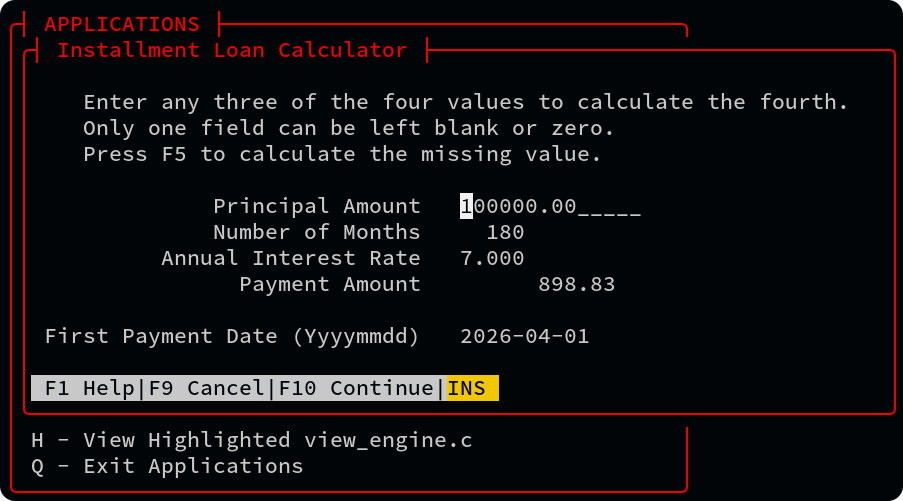
iloan and amort are trivial applications to demonstrate how to use external executables with C-Menu Form. For the purpose of demonstration, we shall designate the images above as 1) upper left, 2) upper right, 3) lower left, and 4) lower right.
Notice in window 4), I have set the field brackets in the configuration file, ~/menuapp/.minitrc. The brackets tend to look good so long as you don't over-crowd the form with 10 or 15 fields on some lines.
Also notice the chyron, the line at the bottom of the form window. It is used to convey state information to the user and to present the user with a set of relevant commands. In the Form windows 2) and 3) above, the chyron highlights the most likely next steps for the user, which are F5 Process and F5 Edit respectively. The user can select commands with the keys indicated or by clicking the command with the mouse. For example, if the user clicks "INS" in the chyron or presses the insert key, the field mode changes from overwrite to insert and the "INS" in the chyron will be highlighted to indicate the current field mode. Press insert or click "INS" again to toggle back to overwrite mode.
Here's the workflow for the Installment Loan Calculations menu item:
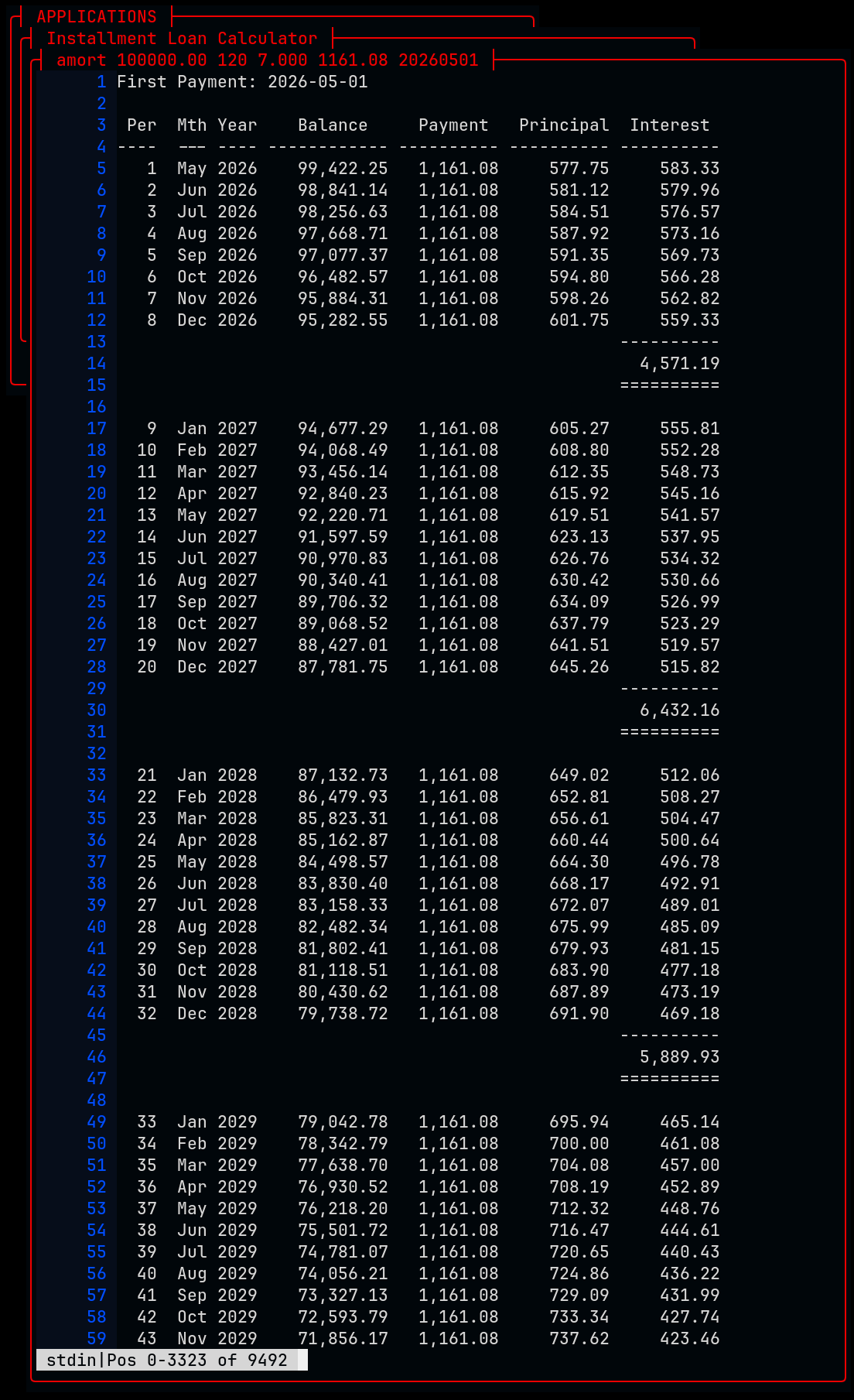
Of course, these are just demonstration programs, and the real magic doesn't start until you start building your own projects with C-Menu.
Cash Receipts also works like Installment Loan Calculations, except no external executable is specified to process data. Obviously, this menu item is not very useful as it stands. It is included here as a challenge in some industrious developer who can write external executables or scripts to provide database interaction and ancillary menu items to track deposit slips and batch numbers and post to general ledger.
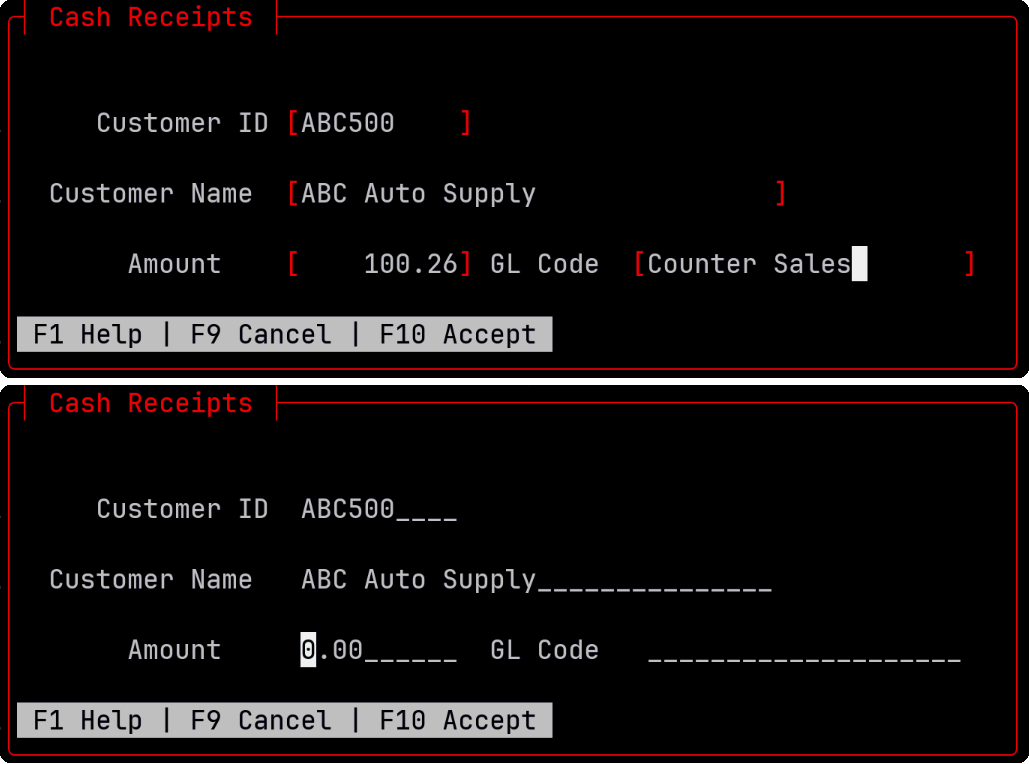
The left hand Form window demonstrates the use of fill characters to signify allocated, but unpopulated field space. This is a setting that can be specified on the command line or in the C-Menu configuration file, ~/.minitrc.
Usage Examples:
The right hand ../screen above demonstrates the use of brackets to enclose the space for entering field data. This is also a setting that can be specified on the command line or in the C-Menu configuration file, ~/.minitrc.
 1.17.0